You can count completed tasks in Google Sheets with the COUNTIF function. If your task statuses are in cells B2 through B5, enter the following formula in an empty cell:
=COUNTIF(B2:B5,"Completed")
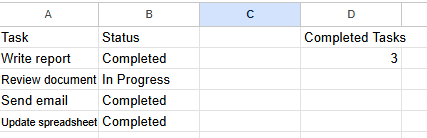
The formula counts how many cells contain the status “Completed.” In our simple test using four sample tasks, it returned 3, matching the three completed tasks in the spreadsheet.
This guide shows you how to reproduce that result, create a reusable task counter, and troubleshoot common problems.
Key Takeaways
- Use
COUNTIFto count cells that match a specific status. - The formula
=COUNTIF(B2:B5,"Completed")counts completed tasks in the specified range. - Keep status labels consistent to avoid unexpected results.
- Use an expanding range when your task list grows.
- Use
COUNTIFSwhen you need multiple conditions. - You can calculate completion percentages by dividing completed tasks by the total number of tasks.
1. Create a Simple Task Tracker
Start by opening Google Sheets and creating a blank spreadsheet.
Add the following sample information:
| Task | Status |
|---|---|
| Write report | Completed |
| Review document | In Progress |
| Send email | Completed |
| Update spreadsheet | Completed |
Enter “Task” in cell A1 and “Status” in cell B1.
The four tasks should occupy rows 2 through 5.
This example uses fictional work tasks, so you can follow along without uploading company information.
Why Task Statuses Matter
A task tracker is easier to maintain when every task has a clearly defined status.
For example:
- Not Started
- In Progress
- Completed
- Blocked
If different people use different labels, such as “Done,” “Finished,” and “Completed,” a formula that checks only one label will not count the others.
Choose a consistent naming system before building reports around your data.
2. Count Completed Tasks With COUNTIF
Click an empty cell, such as D2.
Enter:
=COUNTIF(B2:B5,"Completed")
Press Enter.
Google Sheets checks the cells from B2 through B5 and counts the entries matching “Completed.”
For the sample table, the expected result is:
3
Understanding the Formula
The formula has two main parts.
B2:B5 — The range
This tells Google Sheets which cells to examine.
In our example, column B contains the task statuses.
“Completed” — The criterion
This tells Google Sheets which status should be counted.
The text is placed inside quotation marks because it is a text criterion.
You can change the criterion to count another status.
For example:
=COUNTIF(B2:B5,"In Progress")
With the sample data, the expected result is 1.
Our Verified Google Sheets Example
We created a four-task example in Google Sheets and entered the COUNTIF formula.
Three tasks had the status “Completed,” and one had the status “In Progress.”
The calculation returned 3, matching the sample data.
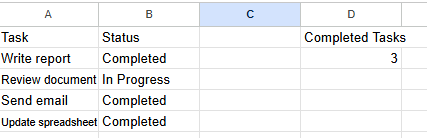
Google Sheets COUNTIF test: The formula returned 3 completed tasks from four sample entries.
The test demonstrates that this formula produces the expected result for the specific example shown.
It does not establish a performance benchmark for large spreadsheets or every spreadsheet configuration.
3. Count Other Task Statuses
You can use the same function to build a basic status summary.
For example:
| Status | Formula |
|---|---|
| Completed | =COUNTIF(B2:B5,"Completed") |
| In Progress | =COUNTIF(B2:B5,"In Progress") |
| Not Started | =COUNTIF(B2:B5,"Not Started") |
| Blocked | =COUNTIF(B2:B5,"Blocked") |
Place these formulas in a separate summary section.
A status summary can help you quickly identify how much work is completed, what remains in progress, and which tasks need attention.
However, the formulas will count only the text criteria you provide.
If you use a different status naming system, adjust the formulas accordingly.
4. Automatically Count New Tasks
A fixed range such as B2:B5 works for a small example, but it will not include tasks added below row 5.
For a task list that grows over time, use:
=COUNTIF(B2:B,"Completed")
This checks column B starting from row 2.
When additional task statuses are entered in that column, they are included in the count.
Why Start at Row 2?
Row 1 usually contains a column heading.
By starting at B2, you exclude the heading from the counting range.
In this case, the heading would not match “Completed” anyway, but excluding headers is a useful habit when organizing spreadsheet formulas.
Keep Summary Formulas Separate
If you use an expanding range in column B, place the summary formulas somewhere else, such as column D or E.
This keeps your task records separate from calculated results and reduces the possibility of accidental changes.
5. Calculate Your Task Completion Rate
Counting completed tasks is useful, but sometimes you also want to know what percentage of the task list is finished.
A completion rate compares the number of completed tasks with the total number of tasks.
For a simple task table where every task row contains a nonempty task name in column A, use:
=IFERROR(COUNTIF(B2:B,"Completed")/COUNTA(A2:A),0)
The formula divides the completed-task count by the total number of nonempty task names.
Format the result as a percentage in Google Sheets.
For example, if a task list contains four tasks and three are completed, the completion rate is 75%.
This is an illustrative calculation using the same sample values, not an additional hands-on test result.
Important Limitation
This method assumes that each task occupies one row and that the task-name column is populated correctly.
If your spreadsheet contains blank task names, notes mixed into the task column, or unrelated information, the denominator may not represent the true number of tasks.
Always verify how your task list is structured before using completion percentages in official reports.
6. COUNTIF vs. COUNTIFS: What’s the Difference?
Google Sheets provides both COUNTIF and COUNTIFS.
COUNTIF is useful when you need to evaluate one condition.
COUNTIFS is useful when multiple conditions must be satisfied.
| Feature | COUNTIF | COUNTIFS |
|---|---|---|
| Single status condition | Yes | Yes |
| Multiple conditions | No | Yes |
| Count completed tasks | Yes | Yes |
| Count completed tasks assigned to one person | Requires another approach | Yes |
| Typical use | Simple status counter | Filtered status summary |
Example: Count Completed Tasks Assigned to Alex
Suppose column B contains the task owner and column C contains the status.
Use:
=COUNTIFS(B2:B,"Alex",C2:C,"Completed")
This counts rows where the owner is Alex and the status is Completed.
The two criteria must apply to corresponding ranges of the same dimensions.
This is a documented formula example for readers to try, not a claim that we separately tested this variation.
Google provides additional details in its official COUNTIFS documentation.
7. Why Is COUNTIF Not Working?
Even a simple formula can produce unexpected results if the spreadsheet is not structured correctly.
Here are several common issues to investigate.
Problem 1: The Formula Returns Zero
Check whether the target cells contain the status you intended to count.
For example, “Finished” and “Completed” are different labels.
Also make sure your formula points to the correct column.
If statuses are stored in column C, a formula that checks column B will not count them.
Problem 2: The Range Does Not Include All Tasks
A formula using B2:B5 does not examine rows below row 5.
If the task list grows, update the range or use:
=COUNTIF(B2:B,"Completed")
Problem 3: Inconsistent Status Labels
Extra words or hidden characters can affect matching.
For example, a status such as “Completed – Approved” is not the same text as “Completed.”
If your workflow intentionally uses several variations, consider standardizing the values or using an appropriate matching pattern.
Avoid adding complicated formulas before understanding why the labels differ.
Problem 4: Formula Parse Error
Check the quotation marks, parentheses, and argument separator.
The standard English-language formula example is:
=COUNTIF(B2:B5,"Completed")
Spreadsheet locale settings can affect separators in certain configurations.
If Google Sheets reports a formula parse error, check your file’s locale and the formula syntax supported in that environment.
Problem 5: Incorrect Total Task Count
A completion percentage may be wrong even when COUNTIF is working.
If the formula counts completed statuses correctly but the total-task range contains unrelated records, the percentage will not describe the actual project.
Review the source data before changing the formula.
8. Make Your Task Tracker Easier to Maintain
Once your formulas work, a few spreadsheet organization habits can make the tracker easier to use.
Use Consistent Status Labels
Choose a short list of statuses and explain what each means.
For example, “Completed” should indicate that the task meets your team’s definition of finished, not merely that someone started it.
Avoid Combining Multiple Tasks in One Cell
Store one task per row.
That makes filtering, counting, and assigning responsibility simpler.
Keep Task Owners in a Separate Column
If you later want to count tasks by team member, a dedicated owner column will make additional formulas easier to create.
Review Unusual Values
Check whether the status column contains unexpected entries or spelling variations.
Standardizing your data is usually more useful than repeatedly modifying formulas to account for avoidable inconsistencies.
Test Changes With Sample Data
Before using new formulas in an important business report, try them with fictional tasks that have known expected results.
If you know the correct result in advance, it is easier to identify errors.
9. When Should You Use a Different Tool?
Google Sheets is a practical option for simple task tracking, but it is not always necessary to build a complicated spreadsheet.
A small team may only need a shared list with basic status labels.
A larger project may require approvals, dependencies, notifications, and a dedicated project management system.
Choose a tool based on the actual workflow.
For example, COUNTIF is appropriate when you want to count task statuses in an existing spreadsheet.
It does not automatically assign tasks, verify whether work was completed, or determine whether deadlines are realistic.
Those are separate responsibilities.
Frequently Asked Questions
How do I count the number of completed tasks in Google Sheets?
Use =COUNTIF(B2:B,"Completed") when your task statuses are in column B starting at row 2. Adjust the range if your statuses are stored elsewhere.
Does COUNTIF automatically update when tasks change?
Yes. When the values in the referenced range change, Google Sheets recalculates the formula. Make sure the range includes the rows you want to count.
Can I calculate a task completion percentage?
Yes. Divide the number of completed tasks by the total number of tasks. Make sure your total-task count accurately represents the tasks in your spreadsheet.
What if I want to count completed tasks for one employee?
Use COUNTIFS to evaluate both the task owner and status. For example, =COUNTIFS(B2:B,"Alex",C2:C,"Completed") when owners are in column B and statuses are in column C.
Final Recommendation
If you need a simple way to track completed work in Google Sheets, start with COUNTIF.
Use a consistent set of status labels, verify the formula against a small sample, and expand the range when your task list grows.
For more advanced tracking, you can add completion percentages or use COUNTIFS to evaluate multiple conditions.
The goal is not to build the most complicated spreadsheet possible. It is to create a reliable way to understand which tasks are completed and which still need attention.
For a broader introduction to organizing office tasks with AI and spreadsheet tools, read our Practical Guide to AI Productivity for Office Workers.
Sources and Testing Notes
Official reference: Google Docs Editors Help — COUNTIF
Additional reference: Google Docs Editors Help — COUNTIFS
Hands-on test: WorkflowFix Lab tested the basic =COUNTIF(B2:B5,"Completed") example with four fictional tasks. Three tasks were marked Completed, and the result displayed was 3.
Other formulas are instructional examples based on documented spreadsheet behavior and should be checked against the reader’s own spreadsheet configuration.
This article was prepared with AI writing assistance and reviewed using official documentation and the stated example test.