AI productivity tools can help office workers draft emails, organize meeting notes, analyze spreadsheet information, and plan repetitive tasks. The most effective approach is to use AI for clearly defined tasks while keeping a human responsible for checking the results.
You do not need to automate an entire department to see where AI might be useful. Start with one recurring task, measure how much time it takes, and test whether a simpler workflow produces a reliable result.
This guide explains how to evaluate everyday AI productivity workflows using ChatGPT, Google Gemini, Microsoft Excel, and Google Sheets.
At WorkflowFix Lab, our editorial team found that pairing a conversational AI draft with fixed spreadsheet formulas significantly reduces weekly reporting friction—provided the underlying numbers remain strictly verified inside the sheet.
Key Takeaways
- Start with one repetitive office task rather than trying to automate everything.
- Use ChatGPT or Gemini to organize information, draft content, and suggest workflows.
- Use spreadsheets to maintain structured records and verify calculations.
- Never assume AI-generated answers, formulas, or summaries are accurate without reviewing them.
- Check your employer’s data security policies before entering company information into an AI service.
- Measure productivity gains using actual task completion times rather than promotional claims.
1. What Does AI Productivity Mean for Office Workers?
AI productivity refers to using artificial intelligence to support work that would otherwise require manual writing, organizing, reviewing, or analyzing.
For many office workers, the largest opportunity is not replacing complicated software. It is reducing unnecessary repetition.
Consider an employee who prepares a weekly progress report.
A typical process might involve reviewing meeting notes, checking a spreadsheet, writing a summary, formatting the document, and emailing it to coworkers.
AI could assist with drafting the summary and organizing the information. A spreadsheet could continue to serve as the source of truth for project status, deadlines, and numerical results.
The important distinction is that AI helps prepare information. It should not automatically be treated as an authoritative record.
Common Office Tasks Worth Evaluating
Here are six practical candidates:
- Drafting routine emails from approved information.
- Turning rough notes into structured meeting summaries.
- Preparing first drafts of weekly reports.
- Explaining spreadsheet formulas.
- Organizing task lists by priority.
- Creating reusable templates for repetitive documentation.
Not every task should use AI.
A simple spreadsheet formula may be faster, more reliable, and easier to maintain than a complicated AI workflow. The right choice depends on the task.
2. How to Use ChatGPT for Everyday Office Work
ChatGPT can help with writing, organizing, explaining, and brainstorming. However, its available features and data settings depend on the account, plan, and workspace configuration.
Example A: Draft a Professional Email
Imagine you need to send a project status update to a colleague.
Instead of asking AI to write an email without context, provide an exact purpose, the relevant facts, and the intended tone.
Example prompt:
“Draft a professional email to a coworker summarizing the following project update. Use a clear, friendly tone and keep the message under 180 words.
Project status: The draft report is complete.
Remaining task: Final approval from the project manager.
Expected next step: Submit the approved report on Friday.
Do not invent additional progress, deadlines, or commitments.”
Review the output before sending it.
Check whether the message describes the project’s actual status, includes accurate dates, and avoids promises you did not authorize.
AI-generated emails are drafts, not verified records of what happened.
Example B: Organizing Meeting Notes With ChatGPT (Hands-On Test)
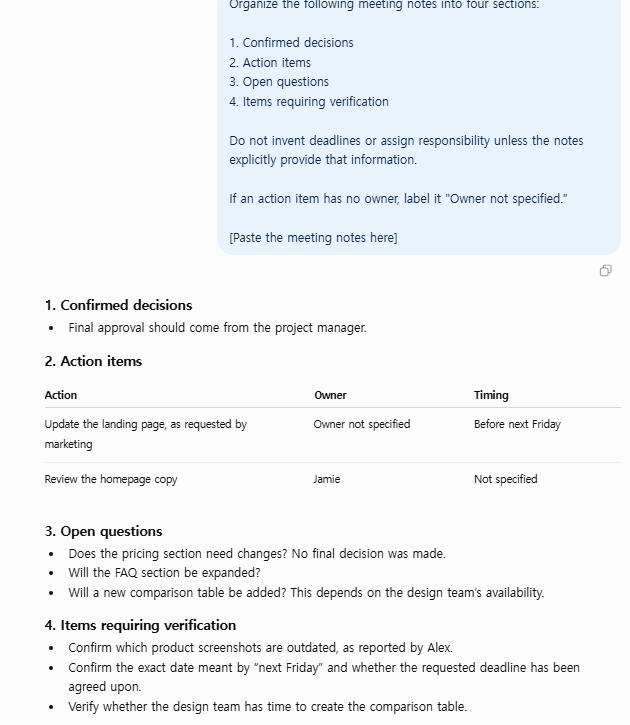
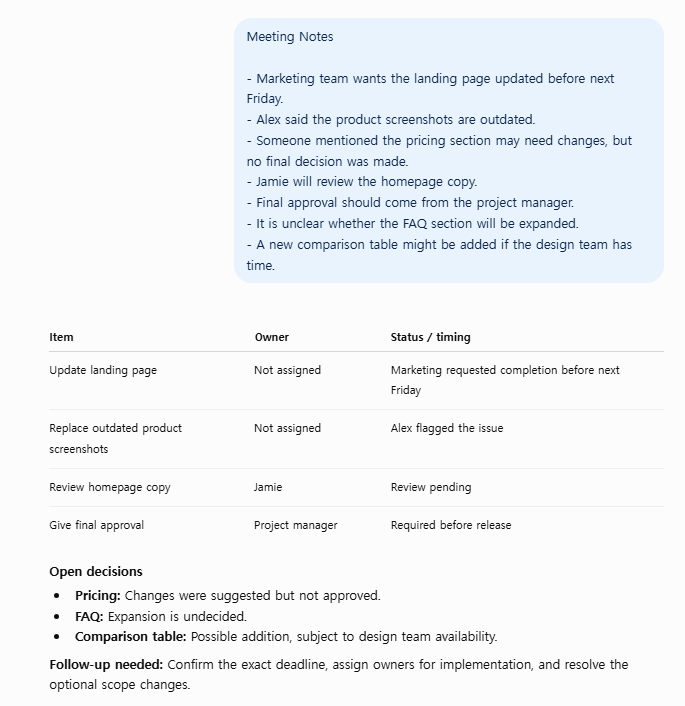
We ran a practical ChatGPT exercise using fictional meeting notes about a landing page update.
The notes included a requested deadline, outdated product screenshots, an assigned homepage copy review, and several unresolved decisions.
We asked ChatGPT to organize the information into four sections:
- Confirmed decisions
- Action items
- Open questions
- Items requiring verification
What worked
ChatGPT organized the notes into readable sections, identified Jamie as the person responsible for reviewing homepage copy, and recognized that the pricing changes and FAQ expansion had not been finalized.
It also identified several items requiring follow-up.
What required human review
The output included some interpretations that were not explicitly confirmed in the original notes.
For example, one version treated replacing outdated screenshots as an action item, even though the notes only stated that the screenshots were outdated.
Another version added a release-related condition that was not explicitly established.
These observations show why AI-generated meeting summaries should be compared against the original notes before being shared as official records.
Practical takeaway
Use ChatGPT to create a structured first draft, but verify every assigned responsibility, deadline, and decision against the source material.
Testing note: This exercise used fictional meeting information and should not be interpreted as a controlled performance benchmark.
Meeting notes often contain incomplete sentences, repeated ideas, and comments that are not actual decisions.
A useful AI workflow starts by separating information into clear categories.
Example prompt:
“Organize the following meeting notes into four sections:
- Confirmed decisions
- Action items
- Open questions
- Items requiring verification
Do not invent deadlines or assign responsibility unless the notes explicitly provide that information.
If an action item has no owner, label it ‘Owner not specified.’”
This instruction reduces the risk of turning a casual comment into an official decision.
You should still compare the output against the original notes.
Example C: Create a Reusable Weekly Report
If you prepare a similar report every week, create a consistent template.
For example:
Weekly Project Report
- Reporting period
- Completed work
- Work in progress
- Blockers
- Upcoming deadlines
- Decisions required
- Supporting data
Ask ChatGPT to organize approved information into this structure.
Avoid asking it to invent results when source data is incomplete.
A reusable template also makes it easier to compare reports from different weeks.
3. How to Use Google Gemini for Office Productivity
Google Gemini is another AI assistant that can support writing, analysis, planning, and other productivity tasks.
Its capabilities vary across products, accounts, subscription plans, and regional availability.
Before planning a workflow, verify whether a feature is supported in the specific version you use.
Example: Prepare a Project Plan
Suppose you are coordinating a small internal project.
Start with the project’s actual requirements rather than asking AI to invent a complete business plan.
Example prompt:
“Create a project planning checklist using these requirements:
Project: Update an internal employee onboarding guide.
Resources: One editor and one reviewer.
Deliverables: Revised guide, review checklist, and publication notes.
Separate confirmed requirements from suggested tasks.
Do not assume a budget or deadline that has not been provided.”
The result can serve as a planning draft.
A human should decide whether the suggested tasks are realistic and whether additional approval is necessary.
Compare Two Drafts Carefully
You can also use AI to compare two pieces of text.
For example, provide two versions of an internal document that you are authorized to share and ask for a list of differences.
Useful categories include:
- Added requirements
- Removed information
- Changed deadlines
- Unclear wording
- Possible inconsistencies
The resulting comparison should be reviewed against the originals.
Do not treat a generated summary as a substitute for reading important contractual or operational documents.
4. ChatGPT vs. Gemini vs. Google Sheets
These tools have different roles.
ChatGPT and Gemini are AI assistants. Google Sheets is a spreadsheet application designed to organize and calculate structured information.
They may complement one another, but they are not interchangeable.
| Task | ChatGPT | Gemini | Google Sheets |
|---|---|---|---|
| Drafting an email | Useful for drafts | Useful for drafts | Not a primary use |
| Summarizing notes | Useful with review | Useful with review | Limited without integrations |
| Tracking project tasks | Can suggest structures | Can suggest structures | Useful for maintaining records |
| Calculating totals | Results require verification | Results require verification | Useful with verified formulas |
| Explaining formulas | Can suggest explanations | Can suggest explanations | Executes supported formulas |
| Maintaining a shared task list | Depends on integrations | Depends on integrations | Supports collaborative spreadsheets |
This comparison describes general use cases. It is not a performance benchmark or a claim that one product is universally better.
Which Tool Should You Choose?
Use an AI assistant when you need help drafting, restructuring, or exploring information.
Use a spreadsheet when accuracy, repeatable calculations, structured records, and collaboration are the primary requirements.
Use both only when the combination creates a measurable improvement.
For example, you might ask an AI assistant to suggest a report structure, then store the actual reporting data in Google Sheets.
That workflow preserves a distinction between generated content and verified information.
5. Build a Weekly Reporting Workflow in Google Sheets
A spreadsheet can serve as the central record for a weekly report.
Create a new Google Sheets file and enter the following column headings:
| Task | Owner | Status | Due Date | Notes |
|---|---|---|---|---|
| Update guide | Alex | In progress | Friday | Draft being revised |
| Review checklist | Jordan | Not started | Friday | Waiting for draft |
| Publish update | Alex | Not started | Monday | Requires approval |
These names, statuses, and dates are illustrative, not real project records.
Step 1: Create a Task Table
Open Google Sheets and create a blank spreadsheet.
Add the five column headings shown above.
Record each task on a separate row.
Avoid combining multiple unrelated tasks into a single cell.
Step 2: Standardize Status Values
Choose a small set of status labels, such as:
- Not started
- In progress
- Blocked
- Completed
Keeping labels consistent makes filtering and reviewing easier.
Step 3: Add a Simple Summary
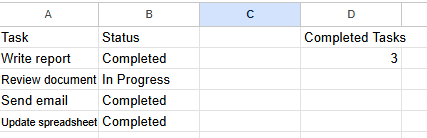
Verification Note:
We tested this workflow in Google Sheets using a sample task table with three rows marked “Completed” and one row marked “In Progress.” The formula =COUNTIF(B2:B5, “Completed”) correctly returned 3, matching the sample data.
Once your spreadsheet is set up, you can use similar formulas to track your team’s progress automatically. For example, if your statuses are in column C (cells C2 through C100), use:
=COUNTIF(C2:C100, “Completed”)
You should still confirm results in your own spreadsheet if your ranges, labels, or locale settings differ.
Learn More: Count Completed Tasks in Google Sheets
Want to track completed work automatically? Our step-by-step Google Sheets tutorial explains how to use COUNTIF, troubleshoot common counting errors, and calculate task completion rates.
Read our Google Sheets COUNTIF tutorial.
Step 4: Review Changes
Google Sheets includes version history functionality for reviewing changes to supported files.
For example, Google’s documentation describes accessing it from File → Version history → See version history.
Availability and permissions may depend on the file and account.
For further details, refer to Google’s official documentation:
https://support.google.com/docs/answer/9331169
Step 5: Prepare the Written Report
After reviewing the spreadsheet, prepare a short report containing:
- Number of completed tasks.
- Tasks currently in progress.
- Blocked items.
- Upcoming deadlines.
- Decisions needed from the team.
AI can help format or explain these findings, but the numbers should be taken from verified spreadsheet records.
6. Protect Sensitive Information Before Using AI
Privacy and confidentiality must be part of any office AI workflow.
Before submitting information to an AI service, check what the information contains and whether you have permission to share it.
Examples of information requiring special care include:
- Customer names and contact details
- Employee records
- Financial account information
- Passwords and API keys
- Confidential contracts
- Internal business plans
- Unpublished product specifications
Personal and Business AI Accounts Are Different
AI services may have different data policies depending on the account type and configuration.
For ChatGPT, OpenAI documents data controls that allow eligible users to manage whether conversations are used to improve models.
The available settings depend on the account and workspace.
Review the current official documentation:
https://help.openai.com/en/articles/7730893-data-controls-in-chatgpt
Changing a privacy setting does not automatically mean every category of confidential business data is appropriate to upload.
Your organization’s security policy remains important.
A Safer Testing Method
Start with synthetic information.
Instead of uploading a real customer spreadsheet, create a small example with fictional names and sample values.
Test the workflow using that example.
Confirm that the output is useful before considering any permitted use with actual business information.
When using company-managed software, follow the organization’s approved tools and procedures.
7. How to Measure Whether AI Actually Saves Time
Claims about productivity improvements should be supported by measurements.
Do not assume a task is faster just because AI produces an answer quickly.
Measure the full process, including prompting, reviewing, correcting, and formatting the output.
A Simple Measurement Method
Choose one recurring task and perform it manually using your normal process.
Record the time required.
Then complete a comparable task using the proposed AI workflow.
Record the time spent on every step:
- Preparing the input
- Generating the draft
- Reviewing accuracy
- Correcting mistakes
- Formatting the final result
Illustrative calculation:
Suppose a manual weekly report takes 40 minutes.
If an AI-assisted process takes 25 minutes, including review, the difference is 15 minutes.
That represents a theoretical reduction of 37.5% for this example.
These numbers are hypothetical. They are not results from a WorkflowFix Lab experiment.
A meaningful benchmark should use comparable tasks and multiple trials.
Record Quality Alongside Time
Speed is not the only metric.
Also record:
- Number of factual corrections needed
- Whether deadlines were captured correctly
- Whether the output required substantial rewriting
- Whether company policies were followed
- Whether the final result was useful to its intended reader
A process that saves five minutes but introduces serious errors may not be a productivity improvement.
8. Common AI Productivity Mistakes
Mistake 1: Using Vague Prompts
“Write my report” gives the system little useful direction.
A better prompt identifies the audience, required sections, source information, and restrictions.
Mistake 2: Trusting Generated Numbers
AI-generated numerical results should be independently checked.
Use spreadsheet formulas or other appropriate calculation tools for important arithmetic.
Mistake 3: Automating an Unclear Process
If team members cannot agree on the correct procedure, automating it may reproduce the confusion.
Document the workflow before attempting automation.
Mistake 4: Using Too Many Tools
Installing several overlapping productivity tools may add subscription costs and maintenance work.
Start with existing software and expand only when there is a specific need.
Mistake 5: Ignoring Security
Never enter credentials, confidential files, or private customer information into an unapproved system.
Even when a service has privacy controls, usage must be appropriate for the data involved.
Mistake 6: Failing to Maintain Templates
Software interfaces, features, and product plans can change.
Review important workflows periodically and update the instructions when necessary.
9. A Five-Day AI Productivity Starter Plan
You can use the following plan to evaluate one small productivity workflow without changing your entire work environment.
Day 1: Identify One Repetitive Task
Write down the task, how often it occurs, and what a successful result looks like.
Choose something low-risk, such as organizing a fictional project checklist.
Day 2: Record the Manual Process
Complete the task using your current method.
Measure the time and identify any confusing or repetitive steps.
Day 3: Create an AI-Assisted Draft
Use approved tools and non-sensitive example data.
Create a prompt that specifies the required output and prohibits invented facts.
Day 4: Compare the Results
Review the AI-assisted version against the manual version.
Record differences in time, quality, and effort.
Day 5: Decide Whether to Keep the Workflow
If the approach is useful and reliable, document the prompt and review process.
If the results are inconsistent, revise the method or return to the simpler manual process.
The objective is to improve a specific task, not to maximize the number of AI tools used.
Frequently Asked Questions
What is the best AI tool for office productivity?
There is no universal winner. The best option depends on your work, existing software, privacy requirements, and subscription budget. Compare tools using the tasks you actually perform.
Can ChatGPT create Excel or Google Sheets formulas?
ChatGPT can suggest formulas and explain their logic. However, you should test any generated formula in the target spreadsheet application before relying on its results.
Is it safe to use AI with company documents?
Only when the use is permitted by your organization’s policies and the relevant service’s data handling meets your requirements. When uncertain, use synthetic examples or seek approval before uploading company material.
Final Recommendation
Start with one repetitive, low-risk office task.
Use ChatGPT or Gemini to explore how the task could be simplified. Keep essential records in appropriate software, such as Google Sheets or Excel. Verify AI-generated work and measure the full time required to produce an accurate result.
A useful AI productivity workflow should be understandable, repeatable, and safe.
The most valuable tool is not necessarily the one with the most features. It is the one that helps you complete real work with fewer mistakes and less unnecessary effort.
Sources and Further Reading
- OpenAI — ChatGPT Data Controls
- Google — Collaborate in Sheets
- Google — Manage Data in Docs Editors
- Google Search Central — Creating Helpful, Reliable, People-First Content
Editorial note: This article contains illustrative workflows and hypothetical calculations. It does not represent independent hands-on performance testing of ChatGPT, Gemini, or Google Sheets.
Comments
One response to “The Practical Guide to AI Productivity for Office Workers”
[…] For a broader introduction to organizing office tasks with AI and spreadsheet tools, read our Practical Guide to AI Productivity for Office Workers. […]